
Device Code Flow Phishing: Recent Spike in M365 Attack Vector

In the last two weeks, the PureCyber team has identified a sharp rise in a highly effective Microsoft 365 attack vector: Device Code Flow Phishing.
This method is particularly dangerous because it abuses a legitimate Microsoft authentication feature. Victims authenticate on a real Microsoft webpage, using their own MFA, and feel completely safe - while unknowingly handing attackers full access to their Microsoft 365 accounts.
Below, we break down how this attack works in simple terms and outline the exact steps organisations should take to prevent it.
What is Device Code Flow?
Microsoft’s Device Code Flow is a legitimate sign‑in method for devices that can’t display a normal login screen because they don’t have traditional browsers or keyboards, such as Smart TVs, some game consoles, IoT devices, and industrial displays.
The process is simple:
The device shows a short code (e.g. A7BC‑1234).
The user goes to a trusted Microsoft URL (e.g. microsoft.com/devicelogin)
They enter the code on another device (like your phone or laptop) to approve and complete sign‑in.
The device receives a valid OAuth token and is authenticated.
This is designed for convenience. Unfortunately, attackers have realised just how easy it is to exploit.
How Attackers Turn Device Code Flow into a Phishing Attack
Because the login happens entirely on Microsoft’s real website, attackers don’t need to steal passwords or create fake pages. They simply trick the victim into completing the login for them, bypassing security checks and MFA.
Here’s the common attack pattern PureCyber is now seeing:
1. Attacker creates a malicious Azure AD app
Often named something that sounds safe, like: Microsoft Security Update Service
2. Attacker triggers a Device Code Flow request
Microsoft then generates a legitimate code such as: E9JK‑7QRZ
3. Attacker contacts the victim
They may use email, phone, Teams, WhatsApp, or whatever the victim is likely to trust, with a believable request and a genuine Microsoft domain.
A message might ask:
“We need you to verify a security update. Please go to Microsoft.com/devicelogin and enter this code: E9JK‑7QRZ.”
Because the URL is real and familiar, users often trust the request.
4. Victim signs in on Microsoft’s own website
They enter the code, pass MFA, and believe they are performing a normal verification. There is no fake login page or harvesting of credentials, which means it is often not identified by secure email gateways.
5. Victim grants permissions to the attacker’s app
After logging in, the user will be asked to approve access to the malicious app created by the attacker. Many users will automatically click ‘accept’ when prompted by a legitimate service. The request is designed to appear innocuous, and could ask something such as:
Mail.Read – access to mailbox
Files.ReadWrite – access to OneDrive/SharePoint
offline_access – long‑term token refresh
User.Read – identity info
Most users click Accept without thinking.
6. The attacker receives a valid OAuth token
This token allows full access to the victim’s account, even with MFA enabled, because the victim completed the authentication themselves. The attacker is now fully verified in the M35 account.
This bypasses all traditional phishing detection controls because:
The browser page is real
The domain is Microsoft
MFA is used correctly
No credentials are stolen
No fake page exists for scanning tools to block
Why This Attack Is So Dangerous:
It looks 100% legitimate to the victim
It bypasses credential‑theft protections like MFA and Conditional Access
It avoids fake login pages entirely, so email filters rarely detect it
It grants persistent OAuth access that often goes unnoticed
We are seeing this attack used to compromise:
Executive mailboxes
Finance team accounts
Teams/SharePoint document libraries
Mail rules to hide attacker activity
Invoicing and payment processes
How to Block Device Code Authentication in Your Tenant
PureCyber recommends disabling Device Code Flow authentication unless your organisation explicitly requires it (most do not).
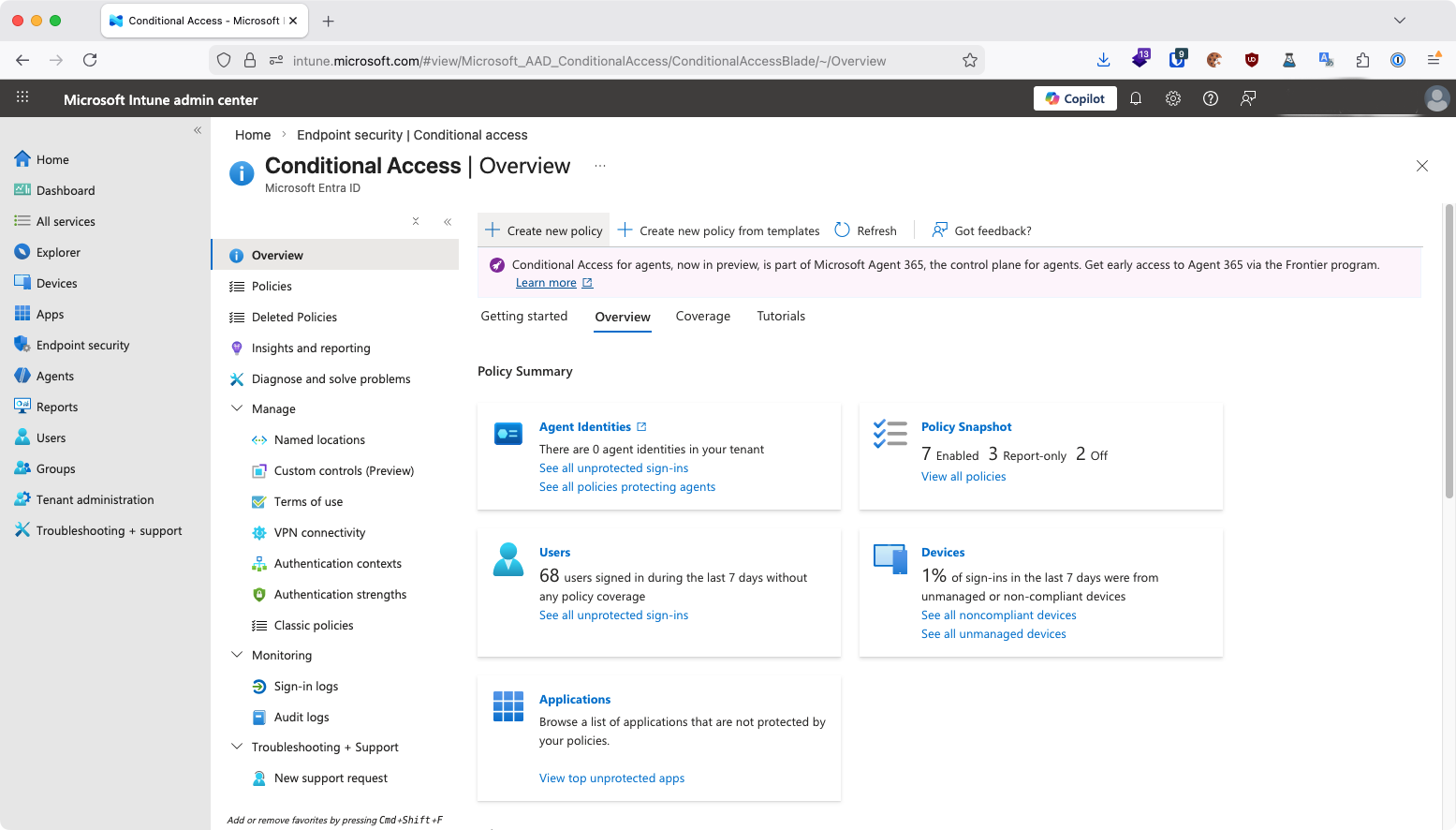
Step‑by‑Step: Block Device Code Flow via Conditional Access
1. Create New Conditional Access Policy
Visit: https://entra.microsoft.com/#view/Microsoft_AAD_ConditionalAccess/ConditionalAccessBlade
Name it:
[BLOCK] Device Code Authentication
2. Under Authentication Flows, tick: Device Code Flow
This is the key setting that blocks the vector.
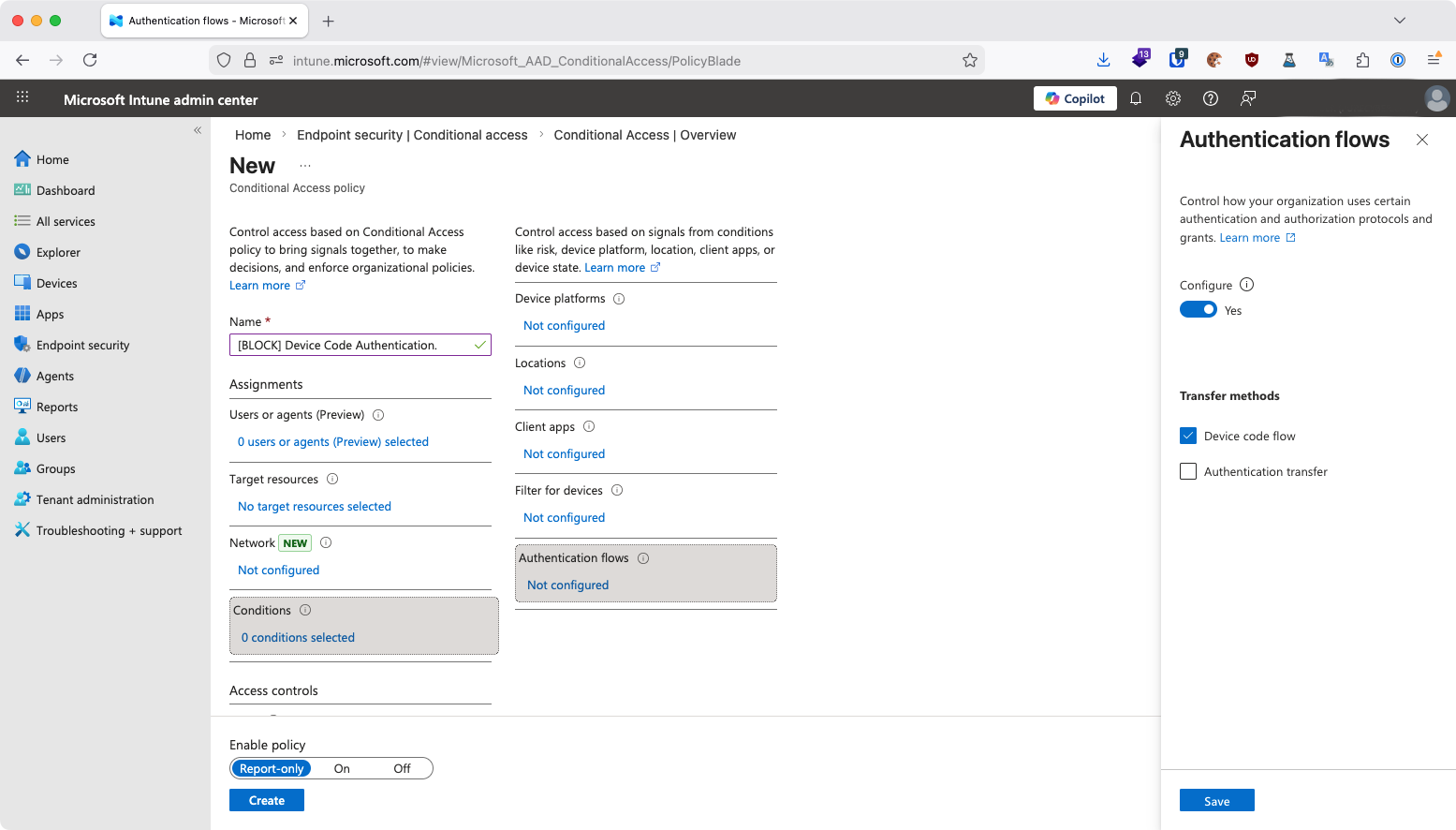
3. Go to: Conditions → Authentication Flows → Set to Yes
This will enable authentication flow controls within the policy.
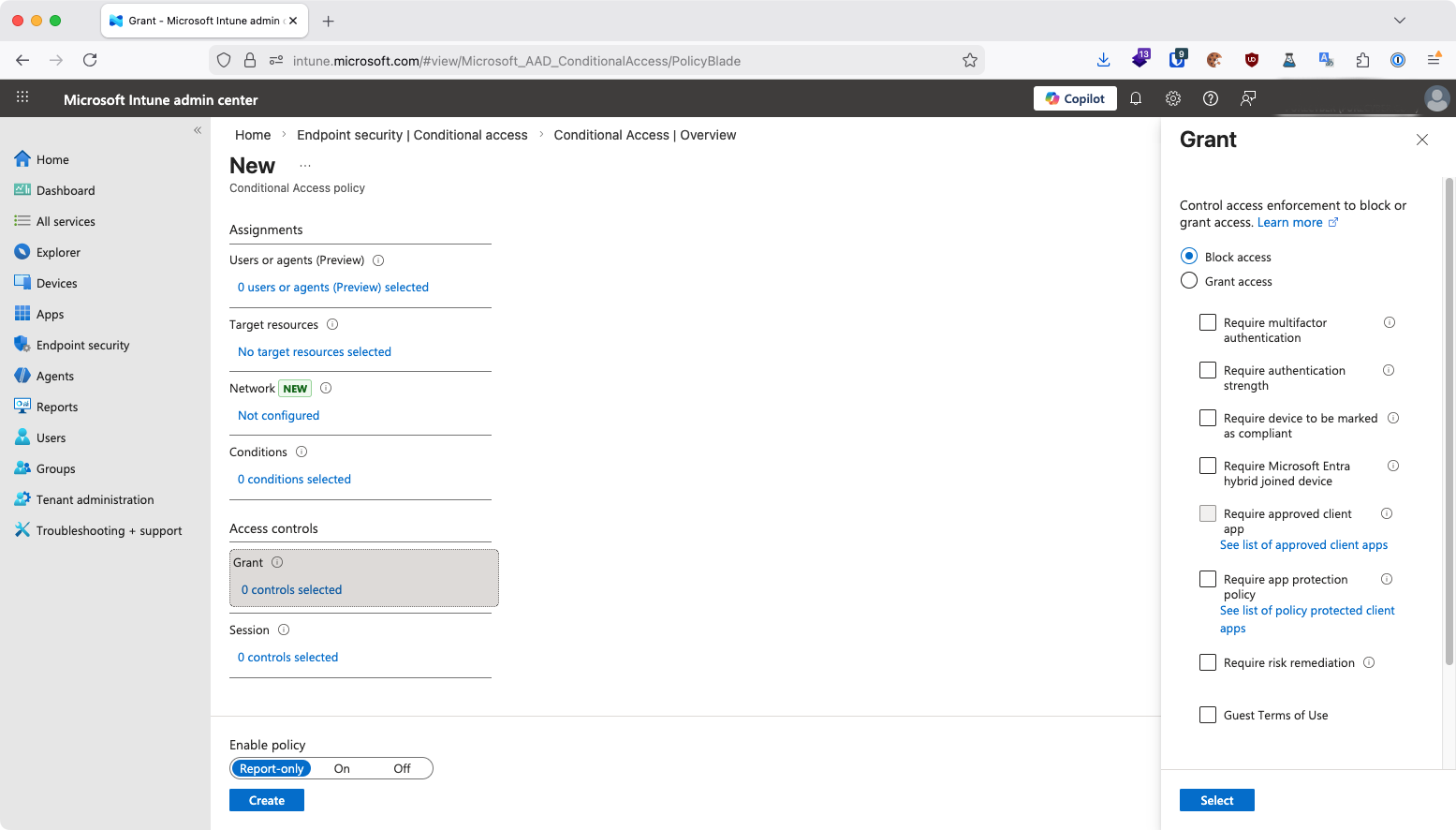
4. Set: Grant → Block Access
This disables authentication attempts through device code flow.
5. Apply to All Users and Resources
Users or Agents: Set > All users
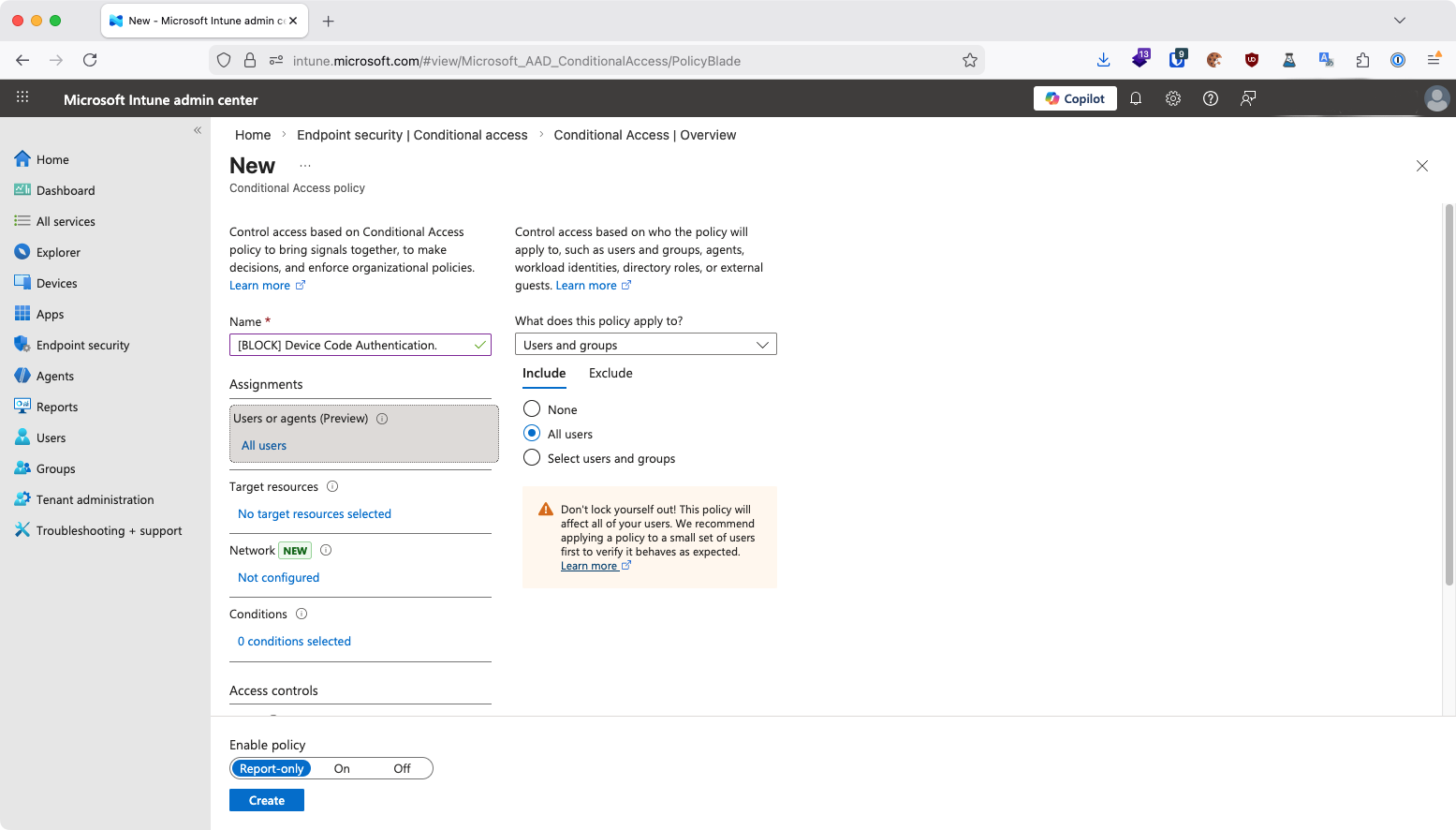
Target resources: Set > All resources
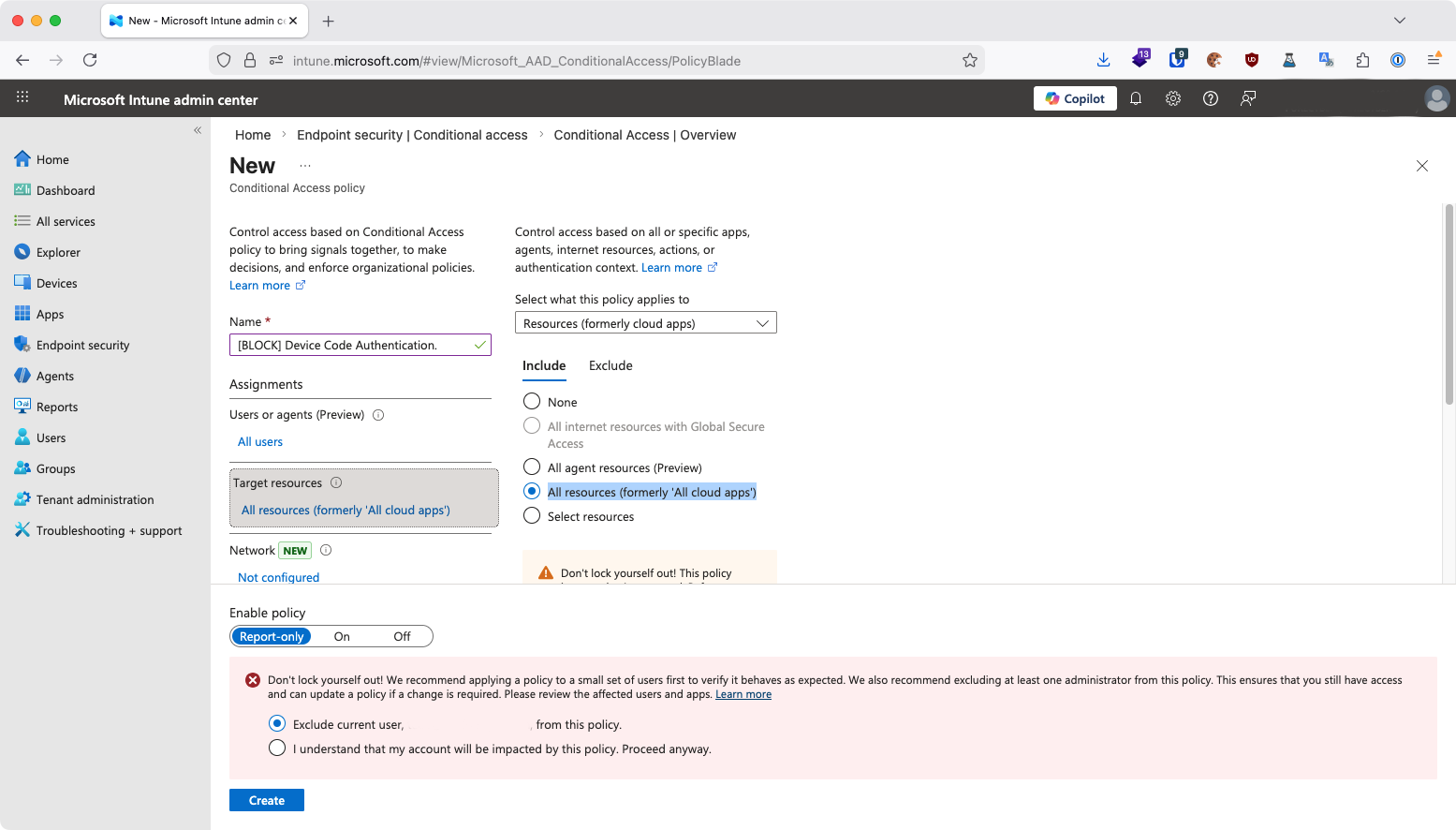
Then select Create to activate.
PureCyber’s Recommendations
Block Device Code Flow as detailed above, unless you have a confirmed operational need.
Raise staff awareness. Educate staff around the auth control and to be extra vigilant about unexpected requests.
Report suspicious Microsoft login requests to security teams immediately.
PureCyber continues to monitor emerging attack patterns and will publish updates as this threat evolves.
If you need support implementing this control or reviewing your tenant for malicious OAuth grants, our team is ready to help.
If you are a PureCyber client, please reach out to your account manager directly.